The 10-Second Setting That Saves Your Sanity
Digital worksheets on Chromebooks can make classroom math engaging and paperless. But every teacher who has ever used Google Classroom has experienced this horror story at least once:
You assign a spreadsheet, all 25 students open it simultaneously, and within 10 seconds everyone is typing in cell C5 at the same time, shouting *"Someone just erased my answer!"*
The Problem: In the Google Classroom assignment creator, the default file sharing setting is often *"Students can view file"* or *"Students can edit file"*. If you don't choose the right option before clicking Assign, your master template gets overwritten and chaos ensues.
The Solution: Always select "Make a copy for each student". Google Classroom will automatically duplicate your master template, rename the file with each student's name, and place it directly into their individual Google Drive folder.
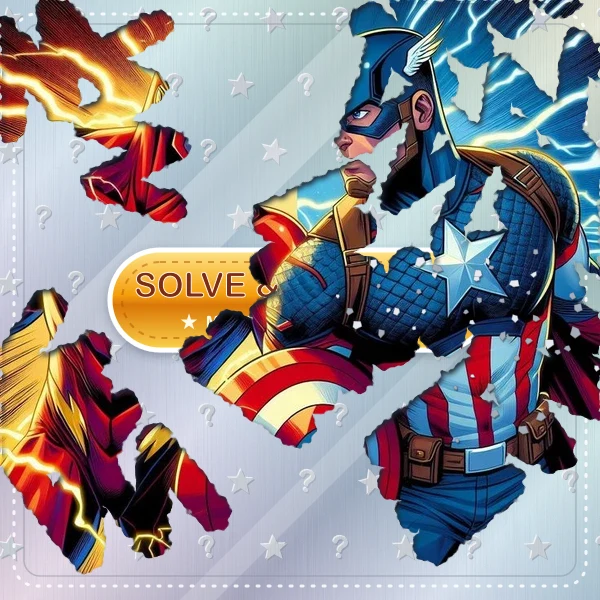
A 50% revealed Spiderman pixel art worksheet: when each student receives their own copy, they uncover the artwork independently as they work through the math.
Step-by-Step: From Google Sheet to Classroom Assignment
Here is the exact sequence to assign a PixelArtMath sheet cleanly:
- Generate Your Sheet: Open Google Sheets, launch Extensions → PixelArtMath → Open Worksheet Studio, pick your math topic and art, and click Create.
- Name Your Spreadsheet: Give the file a clear title in Google Drive (e.g., *Grade 3 Multiplication — Spider-Man Quest*).
- Open Google Classroom: Go to your class and navigate to Classwork → Create → Assignment.
- Attach from Drive: Click the Google Drive icon and pick your spreadsheet.
- Select 'Make a copy for each student': In the dropdown menu next to the attachment, switch it from *Students can view file* to Make a copy for each student.
- Assign: Add your due date and click Assign (or schedule it for tomorrow morning at 8:00 AM).
Ready to Assign Mystery Pictures in Google Classroom?
Generate student-ready sheets in 30 seconds that save straight to your Drive and assign with one click.
Do Students Need to Install Anything?
A frequent concern among tech-weary teachers is whether students need accounts or browser extensions.
The answer is an emphatic NO. - Only the teacher installs the PixelArtMath add-on to generate the worksheet. - The generated worksheet is just a standard Google Sheet with built-in formulas and images. - Students open their copy on their Chromebooks, iPads, or PCs using their existing school Google account. No third-party logins, no passwords to reset, and no student data collected.
How to Grade 25 Sheets in Under 2 Minutes
Grading a self-checking mystery picture in Google Classroom takes about 5 seconds per student:
- Open the assignment in Google Classroom to view student submissions.
- Google Classroom displays live thumbnail previews of each turned-in sheet.
- If the mystery picture is 100% revealed, the student got all questions right. Give them full credit.
- If pixels are still missing, click into the file. The sheet clearly marks which problem numbers have red ❌ indicators so you can give targeted feedback on specific skills.
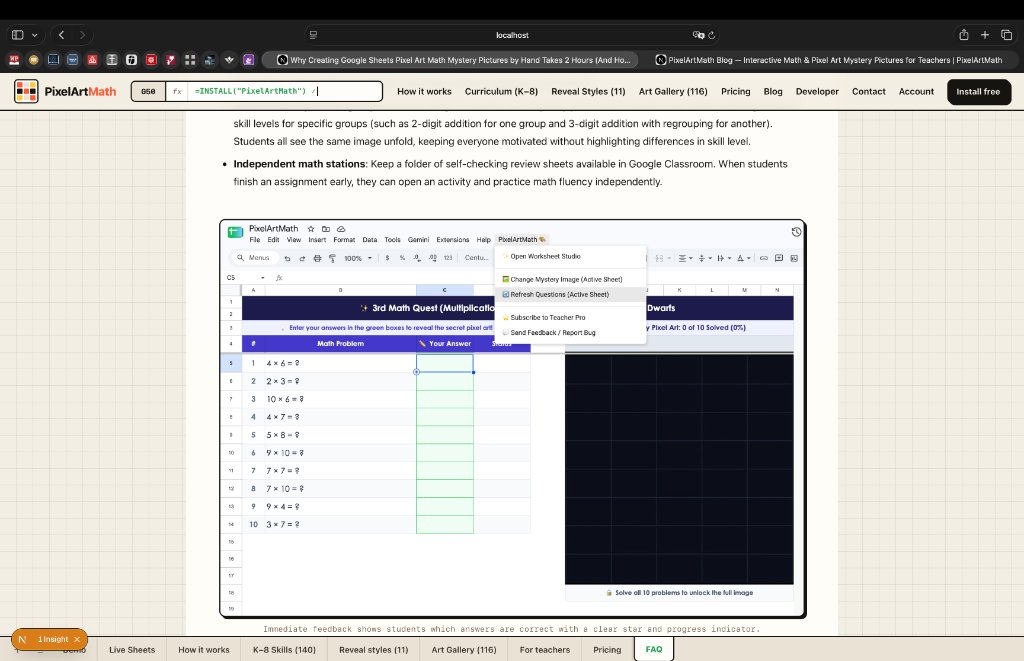
Check completed student work at a glance by looking for fully revealed artwork in your Google Classroom drive folder.

Assign self-checking math in Google Classroom with 1 click.
Choose your math skill, select an artwork, and assign via 'Make a copy for each student'. Zero student accounts required.
Install Free Chrome Extension →