Why Mystery Picture Math Works (And Why Making Them by Hand Hurts)
If you have ever handed your students a traditional paper math worksheet, you already know the routine: groans, distracted glances out the window, and paper balls in the recycle bin.
Mystery picture worksheets flipped that dynamic on its head. When students solve an equation in Google Sheets, pressing Enter reveals colored tiles or puzzle pieces. It feels like unlocking a secret level in a video game.
The Problem: Creating one mystery picture by hand takes between two and four hours of mind-numbing conditional formatting. You have to shrink hundreds of columns, map out cell coordinates on graph paper, and write dozens of custom formula rules—only for a student to accidentally delete a cell and break the entire drawing.
The Good News: You don't have to spend your Sunday afternoon writing formulas. In this guide, we'll walk through the exact manual steps so you understand the mechanics, and then show you how a free Google Sheets add-on can do all the heavy lifting in about 30 seconds.
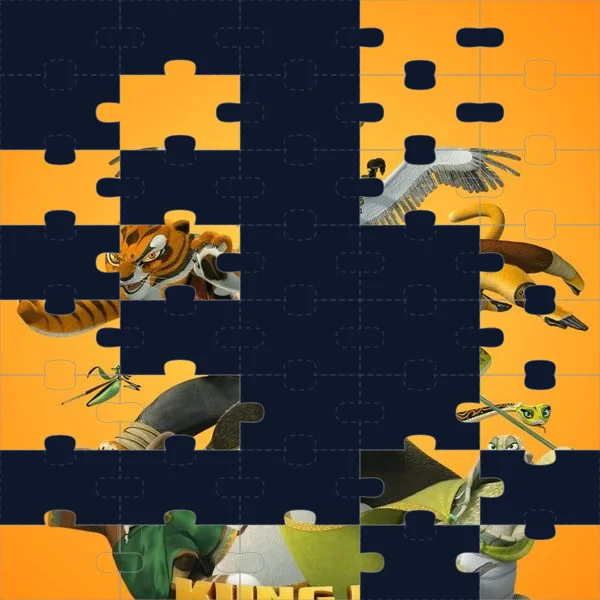
A 50% solved mystery picture in jigsaw puzzle style: students stay motivated to solve each equation to reveal the full character.
The Manual Method: How to Build a Mystery Sheet from Scratch
If you enjoy spreadsheets and want to build a simple mystery picture completely on your own, here is the standard method:
- Square Your Grid: Click the top-left corner box to select the entire sheet. Right-click column header A, select Resize columns, and set them to 20 pixels. Do the same for row height (20 pixels).
- Lay Out Your Math Problems: Reserve Columns A, B, and C on the left for your questions and student answers (e.g., Column A:
#, Column B:Math Problem, Column C:Your Answer). - Draw Your Pixel Art: Use the paint bucket tool to color in your pixel character in Columns E through Z.
- Write Conditional Formatting Rules:
- - Highlight the group of cells that should turn blue when Question 1 is answered correctly.
- - Go to Format → Conditional formatting.
- - Under *Format rules*, select Custom formula is.
- - Type
=$C$5=24(assuming cell C5 holds the student's answer and 24 is the correct number). - - Set the fill color to blue and the font color to blue.
- Repeat for Every Color and Every Question: A typical 15-question sheet requires between 40 and 70 distinct conditional formatting rules.
It works, but it takes patience.

Ready to Skip the Formula Grind in Google Sheets?
Create self-checking mystery pictures with 140+ Common Core math skills in under 30 seconds—no conditional formatting rules needed.
Manual Formulas vs. PixelArtMath: What Actually Happens in the Classroom
Here is how the manual approach compares to generating sheets with the PixelArtMath Google Sheets add-on:
| Feature | Manual Google Sheets | PixelArtMath Studio |
|---|---|---|
| Setup Time | 2 to 3 hours per sheet | Under 30 seconds |
| Formulas Needed | 40–80 custom rules per sheet | Zero manual formulas |
| Cheat Protection | Students can peek at formatting rules | Hidden hash engine protects answers |
| Scaffolding | Text typing only | Typing or smart in-cell dropdowns |
| Changing Skills | Must rewrite formulas from scratch | 1-click question refresh |
The Faster Way: Generating a Sheet in 30 Seconds
If you would rather spend your planning period preparing lessons or leaving school on time, you can use the free PixelArtMath add-on directly inside Google Sheets:
- Open a Google Sheet and go to Extensions → PixelArtMath → Open Worksheet Studio.
- Select your grade level (Kindergarten through 8th Grade) and pick your math skill from the 140 Common Core standards.
- Choose your mystery artwork from 116 kid-friendly themes (Masha, Spider-Man, Kung Fu Panda, seasonal art) and pick a reveal style (Jigsaw, Frosted Glass, Bubbles, Stained Glass).
- Click Create Pixel Art Worksheet. The add-on creates a clean, formatted tab with working formulas and anti-cheat protection instantly.
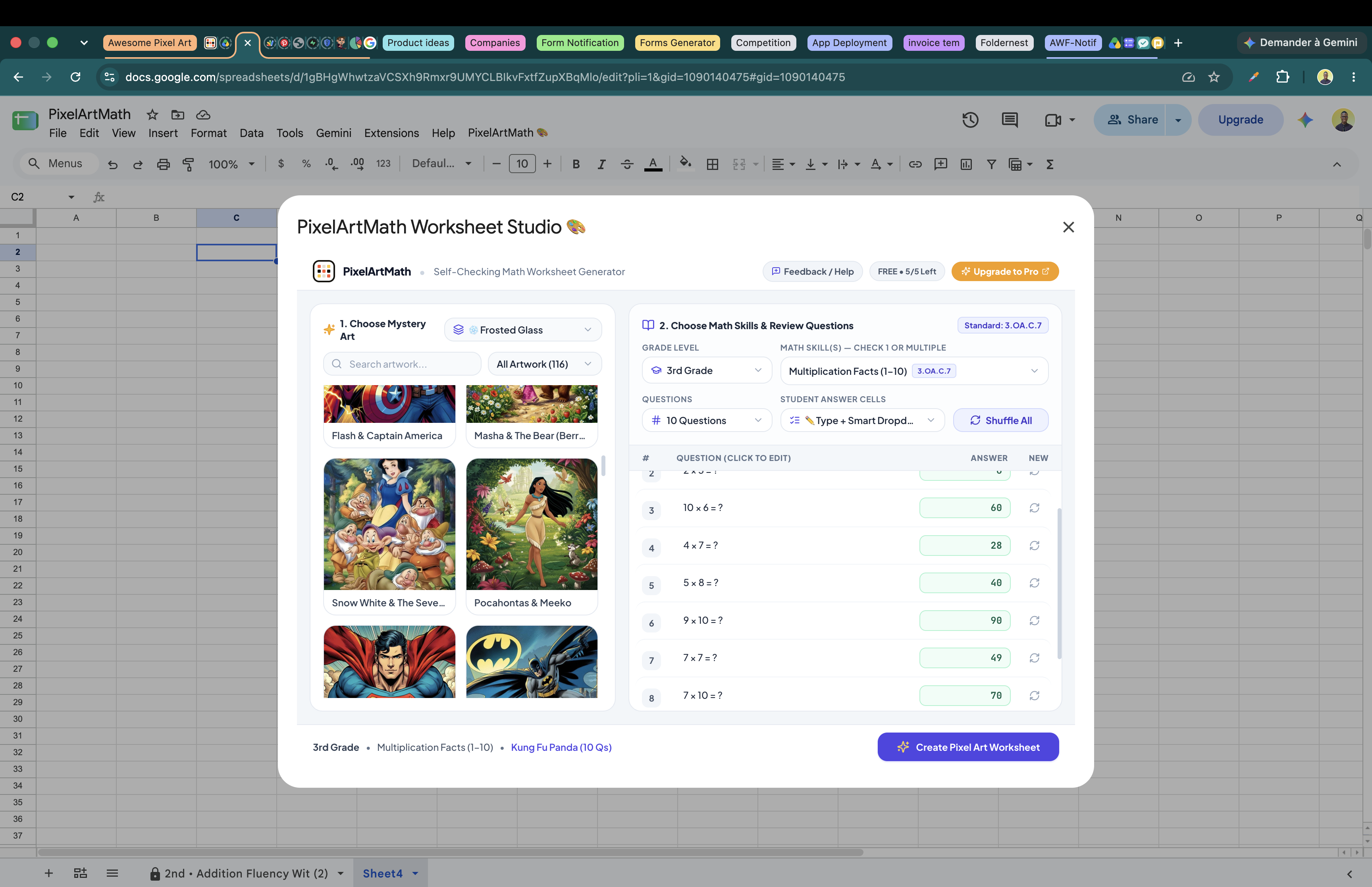
The Worksheet Studio lets you select your math standard, question count, and character art in a single visual window.
3 Quick Tips for Smooth Classroom Implementation
- Use for Morning Bell-Ringers: Ten quick math facts at the start of class settle students into their seats instantly because they want to see the image start unlocking.
- Pair with Scratch Paper: Even though students answer on Chromebooks, have them keep a physical math notebook to show work on multi-step problems.
- Encourage Self-Correction: When a student says "It didn't color!", remind them that the sheet is telling them to check their calculation, not that the computer is broken.
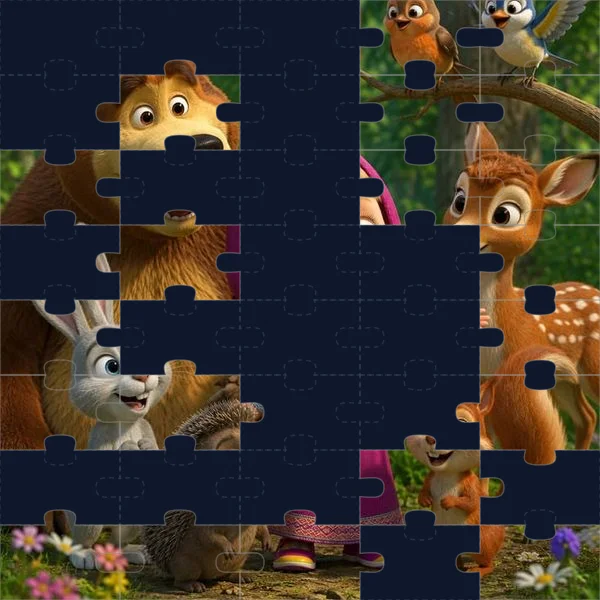
Make Monday's math the thing they ask for.
Install PixelArtMath from the Google Workspace Marketplace and build your first self-checking mystery picture worksheet in under a minute.
Install Free Chrome Extension →